Why These Permissions Are Needed
Before granting permissions, it helps to understand what each one does:- Accessibility: Required for Proximate to detect when monitored apps trigger a notification using the macOS Accessibility API. Without this permission, Proximate cannot read notification badge data from your watched applications.
- Screen Recording: Required for Proximate’s Color Picker function and any other macOS interaction that requires access to screen pixel data. Proximate does not record, store, or transmit your screen content.
Both permissions are controlled entirely by macOS. Proximate can only request access — you grant or revoke it at any time from System Settings → Privacy & Security.
Granting Permissions
Click Fix for the missing permission
In the Proximate permissions prompt, click the Fix button next to whichever permission needs to be enabled. A pop-up may appear stating that Proximate is requesting to use that permission. Click Open System Settings to continue.
Enable Proximate in System Settings
You will be taken to System Settings → Privacy & Security for the selected permission.
- If you see Proximate in the list of applications, ensure its toggle is switched On.
-
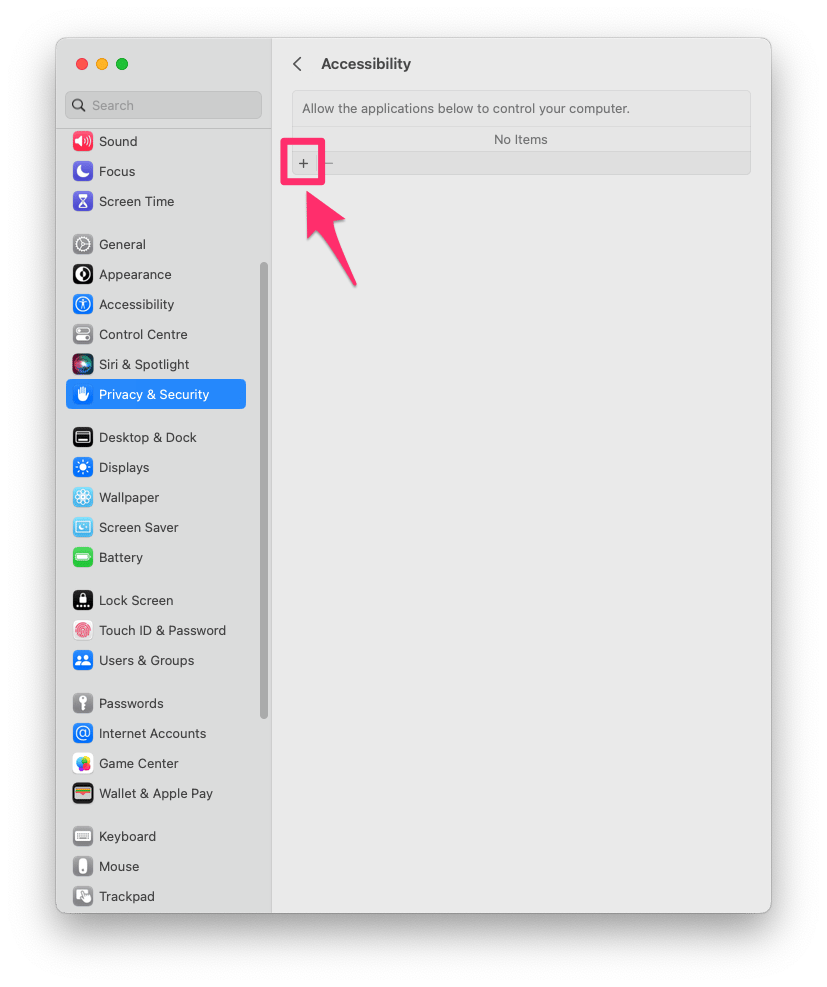
If Proximate does not appear in the list, click the + icon at the bottom of the list and locate Proximate.app on your computer to add it manually.
Authenticate the change
macOS may prompt you to confirm the change using Touch ID or by entering your macOS login password. Follow the on-screen prompts to authenticate and save the setting.
Restart Proximate if required
macOS may require you to quit and relaunch Proximate to apply the new permission. If prompted, follow the on-screen instructions to restart the app.
Need Help?
If you run into any issues granting permissions or Proximate still doesn’t work after completing these steps, please create a support ticket or email the Proximate support team at support@getproximate.app.