Your paid Proximate subscription begins automatically after a 14-day free trial period. You can update your payment information, review your subscription details, or cancel at any time through the Proximate billing portal — no need to contact support for routine billing changes.

Accessing the billing portal

1

Visit the billing portal

Go to store.xpdynamics.com/billing to access your order and subscription details.
2

Enter your order email address

Enter the email address you used when placing your original order. You’ll be sent a secure link to access your subscription and billing settings.
Not sure which email address you used? Submit a support ticket or email support@getproximate.app and the team will help you locate your account.

Updating your payment details

1

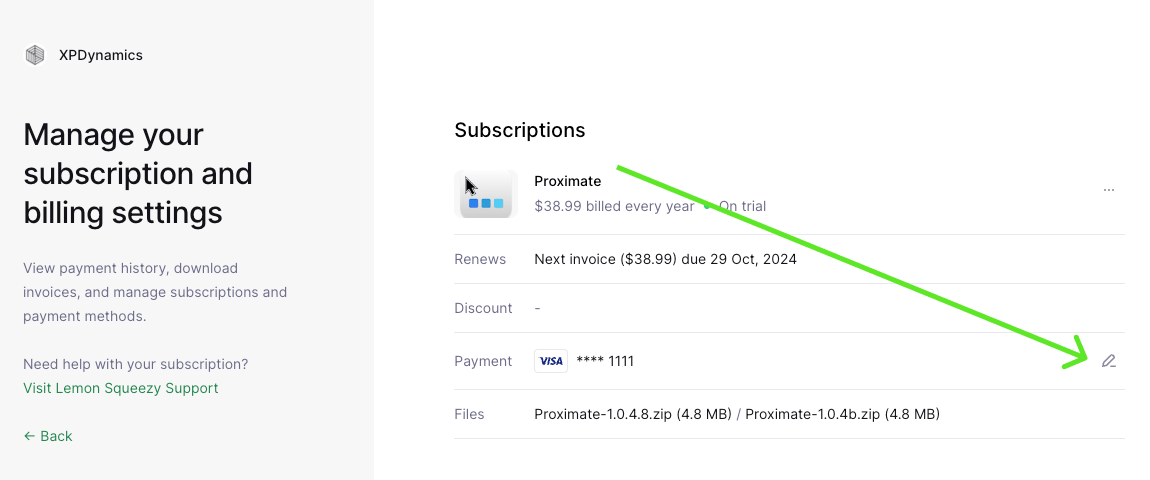
Find the Payment row

In the subscription details area, look for the row labeled “Payment”. There is an edit icon at the far-right end of the row.Payment row with edit icon
2

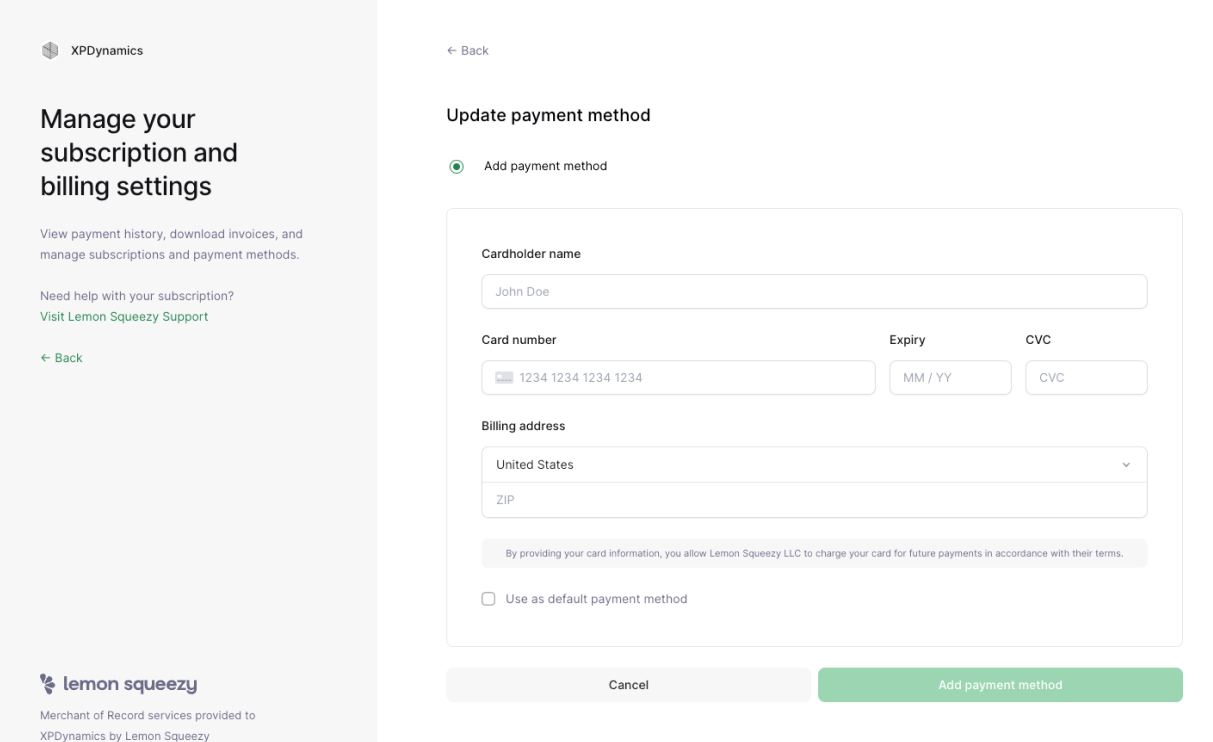
Update your payment method

Click the edit icon and follow the prompts to add a new payment method or update an existing one.Update payment method form

Cancelling your subscription

1

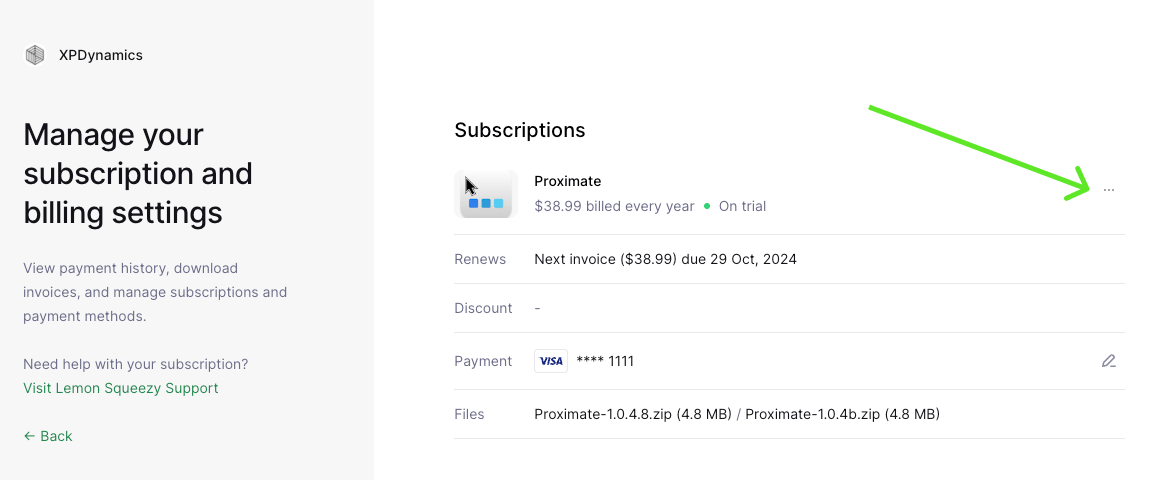
Locate the Subscriptions area menu

In the Subscriptions area of the billing portal, look to the right for a small icon showing 3 dots.3-dot menu icon in the Subscriptions area
2

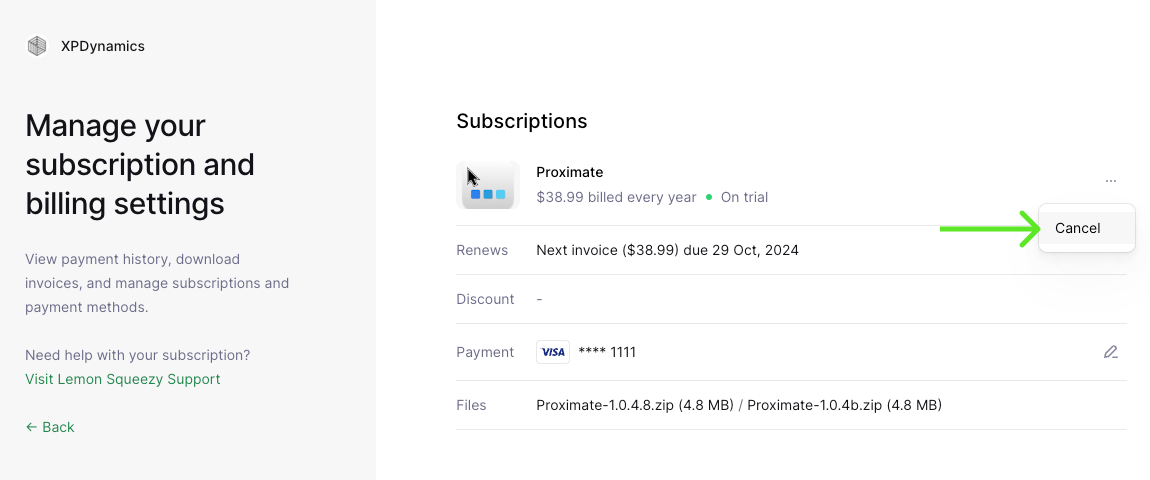
Open the cancellation option

Click the 3-dot icon, then click “Cancel” from the menu that appears.Cancel option in the menu
3

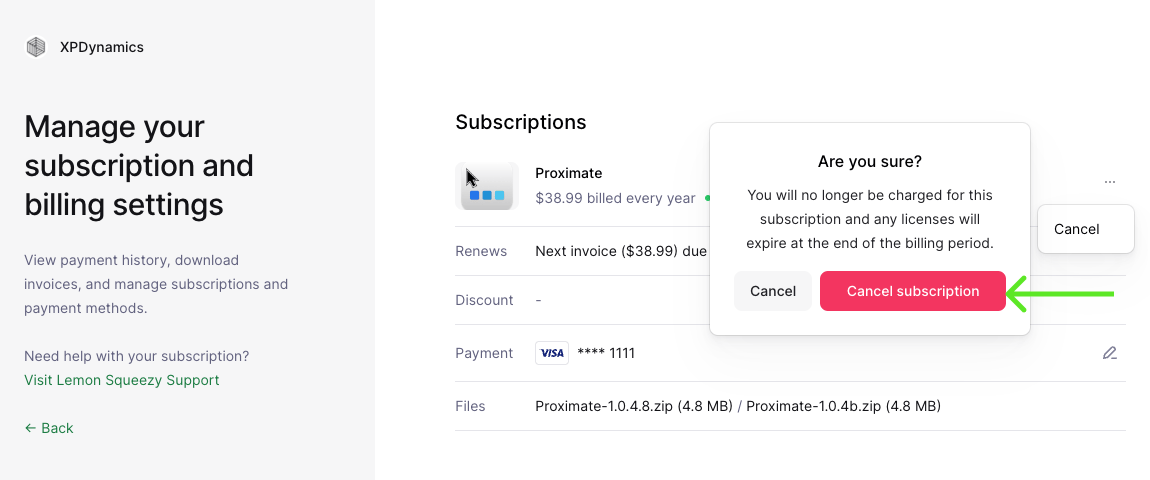
Confirm your cancellation

Follow the on-screen prompts to confirm your decision to cancel. Your subscription will remain active until the end of the current billing period.Cancel subscription confirmation dialog