Step 1: Create the Integration in Proximate
Open Proximate Settings
With Proximate running, open the menu from the menu bar, dock, or taskbar, then select Settings.
Go to the Notifications tab
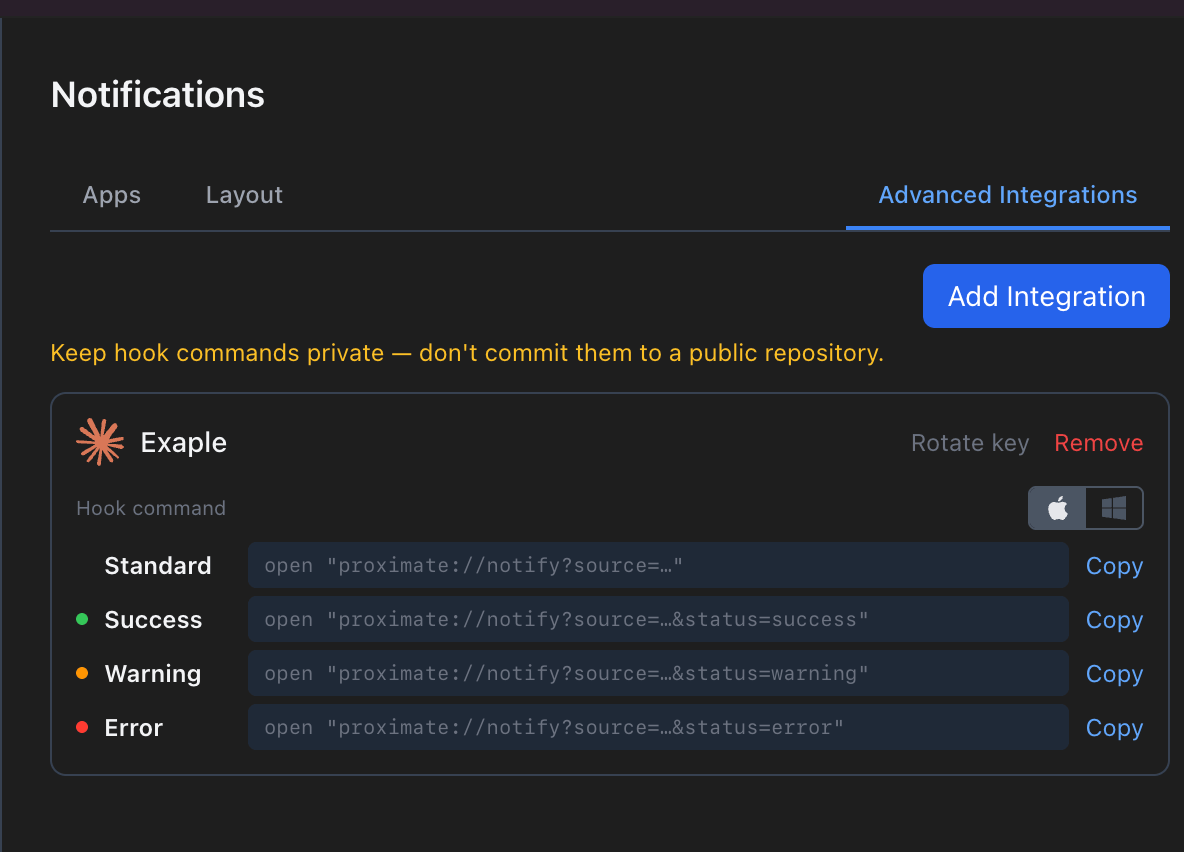
In the sidebar, select the Notifications tab. Make sure the switch in the sidebar is enabled, then select Advanced Integrations on the far-right of the tab bar.
Choose an icon
Select the icon to use. Pick the Claude Code CLI option in the icon library, or choose any other icon you prefer.
Step 2: Wire the Integration into Claude Code
Claude Code can run a shell command on its Stop event, which fires every time Claude finishes responding. You’ll point that event at your Proximate Success hook so you get a green badge each time a task completes.Copy your Success hook command
On your integration card in Proximate, click the Success hook command (or its Copy button). The full command is now on your clipboard.
Open Claude Code's settings file
Open Claude Code’s settings file in your editor. To enable notifications for all projects, use the global settings file:
- macOS / Linux:
~/.claude/settings.json - Windows:
%APPDATA%\Claude\settings.json
.claude/settings.json file inside that project’s folder instead.Add the Stop hook
Add a
Stop hook that runs your Proximate command. If the file is empty, paste this entire block — then replace the example ID with your own ID from the copied command:~/.claude/settings.json
Inside
settings.json, the double quotes around the proximate:// URL must be escaped as \". The safest approach is to paste the block above as-is and then swap in your integration ID, rather than typing the URL by hand. If your settings file already has a "hooks" section, add "Stop" alongside the events already there — don’t replace the existing section.Save and verify
Save
settings.json. Inside Claude Code, run the /hooks command to confirm your new Stop hook is listed.Test end to end
Ask Claude Code to do any small task. When it finishes, a green Claude Code badge should appear right next to your cursor. If it doesn’t, see the Troubleshooting guide.
What Happens Next
Every time Claude Code completes a response, the Stop event fires, which runs youropen proximate://… command, which tells Proximate to display the badge. You’ll see the icon appear by your cursor wherever it happens to be on screen — no need to have the terminal visible or to keep an eye on it.
If you want different signals for different outcomes (for example, a Warning badge when Claude produces a warning-level result), you can add additional hook types using the same pattern in the hooks array.